|
Computer Accessories
Digital Cameras
Audio Multimedia
PDA Accessories
|
|
Power-Supplier.co.uk › Replacement Laptop Batteries › Replacement LENOVO Laptop Batteries (Laptop models list) › ThinkPad T420i Battery |
|
Click to Enlarge
List price: £ 22.02
Special Price: £ 0.08
inc. VAT
Brand New, 'A' Grade Cells, Three Years Warranty
Money-Back Guarantee
 |
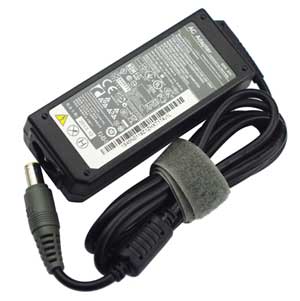
Replacement for LENOVO ThinkPad T420i Laptop Battery From ELEC
If your original part number or laptop model is not included in the compatibility list, our battery may still fit your laptop. Please feel free to contact us at service@power-supplier.co.uk for confirmation. |
| Battery Type: |
Li-ion |
| Voltage: |
20V |
| Color: |
Black |
| Capacity: |
/ 3.25mAh |
| Dimension: |
7.9 x 5.5mm |
| Condition: |
New |
| Reusability: |
Rechargeable |
| Inventory: |
in stock |
|
|
|
|
|
|
Product Type: Replacement Battery, Rechargeable (Brand New)
Highest quality battery cells
Guaranteed to meet or exceed the specifications of the original.
100% original manufacturer compatible, this ThinkPad T420i battery has been tested, and validated on systems to ensure it will work with your notebook.
Quality Assurance: All products are Certified by CE, FCC for safety. Strict guidelines for compatibility, and standards compliance for environment safety.We specialize in providing quality products from and quality customer service.
Warranty: 36 Months Warranty.
Wholesale Price, Fast Delivery. Secure Online Ordering GuaranteedThe shipping cost for each order is £ 5.95.
How to purchase batteries correctly?
Method 1: You have to find your specific laptop model before ordering a correct battery.
How to check your laptop model?
Press [Win] + [R] , input "msinfo32" , then click "OK" to find your system model in the pop-up window.
Method 2: Take the battery out of your computer, confirm your original battery part number and appearance, compared with our battery image, make sure that's what you need. |
This Laptop Charger can replace the following part numbers:
This Laptop Charger is also compatible with the following models:
LENOVO
ThinkPad T510i, ThinkPad L510, 3000 N100,
ThinkPad B590 5941, ThinkPad E520 1143, ThinkPad Edge 01994JU,
ThinkPad Edge 15 0301, ThinkPad L420 7854, ThinkPad L530,
ThinkPad S230u 3347, ThinkPad T430u 6273, ThinkPad T530 2429,
ThinkPad X120E 0596, ThinkPad X131E 3368, ThinkPad X220 4291,
ThinkPad X230 2320, ThinkPad X301 2776,
LENOVO
ThinkPad X201,
LENOVO
ThinkPad X201s, ThinkPad T61 6464, ThinkPad B490,
ThinkPad E430 3254, ThinkPad E535 3260, ThinkPad Edge 14 0199,
ThinkPad L412 4403, ThinkPad L512 4444, ThinkPad R61i 7650,
ThinkPad T410si, ThinkPad T520 4243, ThinkPad T61 7661,
ThinkPad X130E 2338, ThinkPad X201T, ThinkPad X220 7454,
ThinkPad X230 3438, ThinkPad SL510 2847, ThinkPad T520i,
3000 V100, ThinkPad E420 1141, ThinkPad E530 3259,
ThinkPad Edge 0578F7U, ThinkPad Edge 15 0319, ThinkPad L430 2466,
ThinkPad R500, ThinkPad SL300, ThinkPad T520 4239,
ThinkPad T60p, ThinkPad X120E 0613, ThinkPad X131E 6283,
ThinkPad X220 4296, ThinkPad X230 2325, ThinkPad X60 6363,
ThinkPad Edge 0578-47B, ThinkPad L421, 3000 C200,
ThinkPad B590 5936, ThinkPad E430c 3365, ThinkPad Edge 019929U,
ThinkPad Edge 14 0579, ThinkPad L420 7827, ThinkPad L520 7860,
ThinkPad S230u 20C4, ThinkPad T430u 3352, ThinkPad T530 2394,
ThinkPad X100E 3508, ThinkPad X131E 3367, ThinkPad X220 4290,
ThinkPad X220T, ThinkPad X300, ThinkPad X200s,
ThinkPad T61 6463, 7ThinkPad L420 856, ThinkPad E425,
ThinkPad E530c 3366, ThinkPad Edge 13 0196, ThinkPad L412 0585,
ThinkPad L512 2598, ThinkPad R61e, ThinkPad SL500,
ThinkPad T520 4242, ThinkPad T61 7659, ThinkPad X130E 0627,
ThinkPad X200T, ThinkPad X220 4299, ThinkPad X230 3437,
ThinkPad SL410 2842, ThinkPad T420i, 3000 N200,
ThinkPad E220S 5038, ThinkPad E525 1200, ThinkPad Edge 030245U,
ThinkPad Edge 15 0302, ThinkPad L430 2465, ThinkPad R400 7440,
ThinkPad S230u 5933, ThinkPad T430u 8614, ThinkPad T60 1952,
ThinkPad X120E 0611, ThinkPad X131E 3372, ThinkPad X220 4294,
ThinkPad X230 2324, ThinkPad X60 1706,
LENOVO
ThinkPad X201i,
LENOVO
ThinkPad L410, 3000 C100, ThinkPad B590 5935,
ThinkPad E430 6271, ThinkPad E545 20B2, ThinkPad Edge 14 0578,
ThinkPad L412 4404, ThinkPad L512 4447, ThinkPad R61i 7732,
ThinkPad T430u 3351, ThinkPad T530 2392, ThinkPad X100E 2876,
ThinkPad X130E 2339, ThinkPad X220 4287, ThinkPad X220i 4286,
ThinkPad X230T, ThinkPad X200, ThinkPad T61 6459,
3000 V200 , ThinkPad E420S 4401, ThinkPad E530 6272,
ThinkPad Edge 11, ThinkPad L412 0553, ThinkPad L512 2597,
ThinkPad R61 7733, ThinkPad SL400, ThinkPad T520 4240,
ThinkPad T61 7658, ThinkPad X130E 0622, ThinkPad X140E 20BL,
ThinkPad X220 4298, ThinkPad X230 3435, ThinkPad X60s,
|
| |
Choosing the right Charger / AC adapter:Before you buy any AC laptop adapter, please make sure the AC laptop adapter will give you the correct voltage and suitable current output.
Choose the right charger. Firstly, check the compatible brand. Secondly, check the output voltage and current, such as 19V 3.33A, which can be seen on the label of your laptop charger or at the bottom of the laptop. Thirdly, check the connection port.
Click to Enlarge
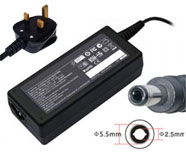
Replacement Laptop Charger / AC Adapter for LENOVO
Voltage: 19V(Output), 3.42A(Output Current)
Power: 65W
Connector Size: 5.5*2.5
|
Click to Enlarge
Replacement Laptop Charger / AC Adapter for LENOVO
Voltage: 19V(Output), 4.74A(Output Current)
Power: 90W
Connector Size: 5.5*2.5
|
Click to Enlarge
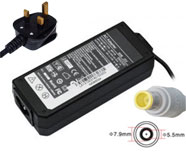
Replacement Laptop Charger / AC Adapter for LENOVO
Voltage: 20V(Output), 3.25A(Output Current)
Power: 65W
Connector Size: 7.9*5.5
|
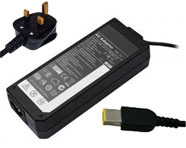
Click to Enlarge
Replacement Laptop Charger / AC Adapter for LENOVO
Voltage: 20V(Output), 3.25A(Output Current)
Power: 65W
Connector Size: slim tip
|
Click to Enlarge
Replacement Laptop Charger / AC Adapter for LENOVO
Voltage: 20V(Output), 4.5A(Output Current)
Power: 90W
Connector Size: slim tip
|
Click to Enlarge
Replacement Laptop Charger / AC Adapter for LENOVO
Voltage: 20V(Output), 4.5A(Output Current)
Power: 90W
Connector Size: 7.9*5.5
|
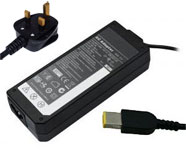
Click to Enlarge
Replacement Laptop Charger / AC Adapter for LENOVO
Voltage: 20V(Output), 2.25A(Output Current)
Power: 45W
Connector Size: slim tip
|
|
|
| |
Restore Your Laptop's Power with Confidence
Engineered for reliability and safety, our replacement LENOVO ThinkPad T420i battery pack is designed to seamlessly integrate with your laptop and deliver performance that meets or exceeds original specifications. We ensure this through our uncompromising commitment to quality:
Rigorously Tested for Safety: Each battery is built to comply with international safety standards and features robust protection circuits for complete peace of mind.
Built to Last with Quality Cells: We use high-quality cells and advanced engineering to ensure optimal performance and a prolonged lifespan.
Worry-Free Warranty: Your purchase is protected by a comprehensive three-year warranty, guaranteeing long-term satisfaction.
Enjoy a secure, easy online ordering process. Upgrade with confidence today and experience superior battery life.
How to Maximize Your Laptop Battery's Lifespan and Performance
This guide outlines a dual-strategy to get the most from your battery: maximizing the runtime of each charge and protecting its long-term health. Following these principles, based on modern lithium-ion technology, will ensure optimal performance for years to come.
Strategies for Longer Runtime Per Charge
These settings help you get more work done when you're away from an outlet.
Lower Screen Brightness: This is the single most effective way to conserve power.
Use Power-Saving Modes: Enable Windows "Battery Saver" mode to automatically limit background activity and adjust system performance.
Disable Unnecessary Features: Turn off keyboard backlighting, Wi-Fi, Bluetooth, and resource-intensive features like "AI Noise Canceling" when not needed.
Mind Your Workload: Understand that demanding applications like gaming, video editing, and complex software will naturally consume power much faster.
Best Practices for Long-Term Battery Health
These habits minimize wear and tear, preserving your battery's capacity over time.
Utilize Built-In Battery Protection Modes: This is the most important step. Access your laptop's power management settings (e.g., MyASUS, Dell Power Manager, Lenovo Vantage) to enable features like "Battery Health Charging," "Conservation Mode," or "Charge Limit." These modes cap the maximum charge at around 80%, significantly reducing voltage stress and prolonging lifespan.
Avoid Extreme Charge States: Try not to regularly drain the battery below 20% or keep it consistently at 100%. For daily use, maintaining a charge between 20% and 80% is ideal.
Control Temperature; Avoid Extreme Heat: High temperatures are the primary enemy of battery longevity. Never leave your laptop in a hot car, and avoid using it on soft surfaces like beds or sofas that can block ventilation vents.
Additional Important Scenarios
Initial Setup: New batteries do not require a special "break-in." You can start using them immediately. Avoid intentionally performing multiple full charge-discharge cycles.
Long-Term Storage: If you won't use the battery for a month or more, charge (or discharge) it to approximately 40%-60% and store it in a cool, dry place.
Can I replace my laptop battery myself?
Yes, you can usually replace your laptop battery yourself, though the difficulty depends on your laptop model. Older laptops often have removable external batteries that are simple to swap out. In contrast, many modern models have internal batteries, which require you to carefully remove the back panel. For a successful and safe replacement, always look up a guide for your specific model and use the proper tools, such as a Phillips screwdriver and a plastic spudger or prying tool.
Is it cheaper to replace a laptop battery or buy a new one?
Absolutely! Replacing your battery is almost always the more affordable choice. A new, compatible battery typically costs a fraction of a brand-new laptop. Save your money for what really matters and give your trusty laptop a new lease on life. It's a smart investment that saves you hundreds.
Does charging a laptop while using it affect battery life?
For modern laptops, the impact is minimal. While keeping any lithium battery at 100% charge for extended periods can contribute to gradual wear, today's devices are designed to handle this.
Once fully charged, they intelligently switch to running directly from the AC adapter, stopping the charging process. To effortlessly optimize battery health, look for and enable a "Battery Conservation Mode" in your system settings, which manages the charge level for you.
What happens if I don't replace my laptop battery?
Ignoring a failing laptop battery leads to more than just poor performance. It turns your portable device into a desktop tethered to an outlet. Worse, it can cause sudden shutdowns (risking data loss) and physical swelling. A swollen battery is not just a repair issue; it's a potential safety hazard that can damage your laptop's internal components. Replacing it is a small investment to protect your data and your device. |
|
|